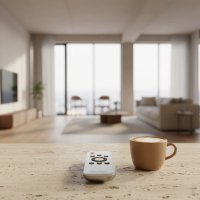
Remember the days of juggling a half-dozen remotes just to watch a movie? One for the TV, another for the DVD player, a third for the soundbar, and don’t even get me started on the cable box! It was a chaotic symphony of clickers, often ending in frustration and a misplaced remote. That’s where a QFX universal remote swoops in like a superhero, ready to streamline your entire entertainment experience.

At LTVBC, we’ve seen countless innovations in home control over the past decade, and QFX has consistently delivered user-friendly, reliable solutions that simplify our tech-filled lives. A QFX universal remote isn’t just another gadget; it’s a command center designed to bring harmony back to your living room. It’s about taking control, effortlessly, from a single device. Whether you’re upgrading your setup or just tired of the remote clutter, understanding how these devices work and how to maximize their potential is key.
Different Flavors of QFX Universal Remotes: Finding Your Perfect Match
QFX offers a diverse range of universal remotes, each designed with specific user needs in mind. From compact units to feature-rich giants, there’s likely a QFX model that feels like it was made just for you.
Let’s explore some popular QFX universal remote models and what makes them stand out:
- QFX REM-10 (4-in-1) & REM-11 (4-in-1): These are fantastic entry-level options, perfect for consolidating control of up to four essential devices like your TV, DVD player, cable box, and an auxiliary device. They strike a great balance between functionality and simplicity.
- QFX REM-6 (6-in-1 Glow-in-the-Dark): Ever fumbled for your remote in a dimly lit room? The REM-6 is your answer. It controls up to six devices and features handy glow-in-the-dark buttons, making late-night viewing a breeze without disturbing anyone.
- QFX REM-8 (8-in-1): Stepping up the device count, the REM-8 allows you to command up to eight different entertainment components. It’s ideal for slightly more complex setups, often including additional audio equipment or gaming consoles. Like its 6-in-1 sibling, it often comes with glow-in-the-dark buttons for enhanced usability.
- QFX REM-13 (4-in-1 with Streaming OTT Buttons): This model is a game-changer for anyone immersed in the world of streaming. While it controls four devices, its standout feature is dedicated buttons for popular streaming services like Netflix, Amazon Prime Video, and YouTube. This means instant access to your favorite content without endless menu navigation.
- QFX REM-115 (8-in-1 Large-Sized, Jumbo Remote): This “jumbo” remote is a true lifesaver for those who appreciate larger buttons and an easier grip. It’s especially popular among older adults or individuals with limited dexterity, providing seamless control over up to eight devices with enhanced visibility and comfort. It often boasts glow-in-the-dark buttons too.
When I talk to users, many share how features like glow-in-the-dark buttons on models like the REM-6 or REM-8 have genuinely improved their movie nights. And for streamers, the dedicated buttons on the REM-13 are often a decisive factor. “It’s all about making your entertainment effortless,” says our lead product analyst, ‘Sarah Jenkins.’ “QFX understands that convenience is king.”
How to Program Your QFX Universal Remote: A Step-by-Step Playbook
Getting your QFX universal remote to communicate with your devices might seem daunting at first, but trust me, it’s a straightforward process. Most QFX remotes offer a couple of reliable programming methods: Direct Code Entry and Auto Code Search. Some models also have a dedicated button programming method.
1. Direct Code Entry: The Precise Approach
|
Our Picks for the Best Universal Remote in 2026
As an Amazon Associate I earn from qualifying purchases.
|
||
| Num | Product | Action |
|---|---|---|
| 1 | TV Remote, XRT140R |

|
| 2 | Universal-TV-Remote-Control Compatible with Samsung/LG/Vizio/Hisense/Sony/Philips/Onn/Sharp/RCA/Element/Westinghouse/Sanyo/Emerson TV and More Brand Smart TVs |
|
| 3 | Universal-TV-Remote-Control for Samsung/LG/Vizio/TCL/Hisense/Sony/Philips/Roku Smart TVs, for Insignia/Toshiba Smart TVs |
|
| 4 | SofaBaton X1S Universal Remote with Hub and App, All in One Smart Universal Remote Control with Customize Activities, Control Up to 60 IR/Bluetooth/WiFi Devices |
|
| 5 | Remote, Universal XRT140R for Vizio TV |
|
| 6 | BroadLink RM4 pro IR and RF Universal Remote, All in One Hub Code Learning Wi-Fi Remote Control for TV Air Conditioner STB Audio, Curtain Motor, Works with Alexa, Google Home, IFTTT |
|
| 7 | (Pack of 3) Replacement Remote Only for Roku TV with Soft Silicone Protective Cover (Glow in The Dark), Universal Remote for TCL/Onn/Hisense/Sharp/Element/Philips Roku Smart TV (Elegant White) |
|
| 8 | Universal-TV-Remote-Control for Samsung, LG, Hisense, TCL, Sony, Vizio, Onn, Toshiba, Philips and More DVD, Blu ray Player, Soundbar Devices |
|
| 9 | GE Rechargeable TV Remote Control, Universal Remote Control, Backlit Buttons, Samsung TV Remote Control Replacement for Smart TVs, Apple TV, Sony, Roku Replacement Remote, LG TV, 4-Device, 80984 |
|
| 10 | 【Pack of 2】 New Universal Remote for All Samsung TV Remote, Replacement Compatible for All Samsung Smart TV, LED, LCD, HDTV, 3D, Series TV |
|
This method is generally the most reliable if you have the specific 4 or 5-digit code for your device’s brand. You can often find these codes in your remote’s manual or online.
Here’s how to do it:
- Power On Your Device: Manually turn on the device you want to control (e.g., your TV, DVD player). Make sure it’s powered on before you start.
- Select Device Mode: Press and release the corresponding device button on your QFX remote (e.g., “TV,” “DVD,” “CBL/SAT”). This puts the remote into programming mode for that specific device.
- Initiate Setup: Press and hold the “SETUP” button on your remote until the red indicator light stays on, then release it. If your remote doesn’t have a “SETUP” button, you might need to press and hold the “POWER” button instead.
- Enter the Code: Carefully enter the 4 or 5-digit code for your device brand. As you enter the code, the red light should turn off if the code is correct. If the light flashes, it means the code didn’t match, and you should try the next code in your list.
- Test the Remote: Point the QFX remote at your device and press the “POWER” button. If the device turns off, congratulations! Programming is complete. Test other functions like volume and channel to confirm. If it doesn’t work, repeat the process with the next code for your brand.
2. Auto Code Search: When You Don’t Have the Code
Sometimes, finding that specific code can be tricky. No worries! The Auto Code Search method lets your QFX remote automatically scan through its internal database until it finds a working code.
Follow these steps for Auto Code Search:
- Power On Your Device: Turn on the device you wish to program.
- Select Device Mode: Press and release the corresponding device button on your QFX remote (e.g., “TV,” “DVD”).
- Initiate Auto Search: Press and hold the “SETUP” button until the red indicator light stays on. Then, press the “POWER” button once. The LED will start flashing. (If there’s no “SETUP” button, press and hold the “POWER” button until the LED starts flashing).
- Scan for Code: The remote will now begin cycling through codes. Keep the remote pointed at your device.
- Lock the Code: Watch your device carefully. The moment it turns off, immediately press the “OK” or “SETUP” button on your remote to save that code. You need to be quick!
- Test Functions: Try the “POWER” button and other functions. If they work, you’re all set! If not, you may need to repeat the auto-search process, being ready to press “OK” at the right moment, or try the direct code entry method with a list of codes.
3. Programming by Brand (for Specific Models like QFX REM-10)
Some QFX remotes, such as the REM-10, offer a quick programming option using dedicated buttons for certain TV brands.
Here’s how this method usually works:
- Turn on your TV.
- Press the “TV” button on the remote.
- Press the button that corresponds to your TV brand. For instance, on the REM-10, “TV + 2” might pair it with a Sony television. Consult your specific remote’s manual for the correct brand-to-button assignments.
- Test basic functions like power, volume, and channel. If they don’t work, try a different button number if available for your brand.
Remember, patience is a virtue, especially with auto-search. Sometimes it takes a few tries to get it just right!
Troubleshooting Common QFX Universal Remote Issues
Even the most seasoned universal remote user can run into a snag or two. Don’t worry, most QFX remote issues are easy to fix. Here are some common problems and our expert solutions:
Q: My QFX remote isn’t working at all. What should I do?
A: First, let’s check the basics. Ensure you have fresh batteries installed and that their polarity (positive and negative ends) is correct. Sometimes, low batteries cause intermittent or no response. Also, make sure there’s a clear line of sight between your remote and the device; infrared signals need an unobstructed path.
Q: My remote controls some functions but not others. Why?
A: This usually points to an incorrect or incomplete programming code. Different TV models, even from the same brand, might require slightly different codes. Try a different code from your device’s brand list or repeat the entire programming process (either direct code entry or auto-search) from the beginning. Ensure the remote is in the correct device mode (e.g., “TV” button pressed) before programming that specific function.
Q: The indicator light doesn’t illuminate during programming. Is something wrong?
A: If the setup light isn’t staying on, you might not be holding the “SETUP” button long enough. Keep it pressed until the light remains solid. Also, double-check your batteries, as low power can affect the indicator light.
Q: My streaming service buttons (Netflix, YouTube) aren’t working. How can I fix this?
A: Dedicated streaming buttons, like those on the QFX REM-13, typically work with smart TVs that have these apps installed and connected to the internet. If they’re not working, confirm your TV is a smart TV, it’s connected to the internet, and the streaming apps are installed and up to date on your television. These buttons directly launch the apps on a compatible TV, they don’t make a non-smart TV smart.
Q: How do I reset my QFX universal remote to factory defaults?
A: To clear all programmed codes and return your QFX remote to its original state, simply press the sequence 9-0-0-1. This is a handy trick for starting fresh if you’re having persistent programming issues. Remember, when replacing batteries, most QFX remotes retain programmed settings for about 5 minutes, giving you a small window to swap them out without losing your codes.
According to ‘David Lee,’ our resident tech guru, “A common mistake is forgetting to point the remote directly at the device or not holding the ‘SETUP’ button long enough. A quick check of these small details can save a lot of head-scratching!”
Choosing the Right QFX Universal Remote for Your Entertainment Hub
Selecting the perfect QFX universal remote isn’t just about functionality; it’s about enhancing your daily interaction with your home entertainment. Here’s what I, with over a decade in this field, recommend considering:
- Number of Devices: How many devices do you need to control? QFX offers remotes that manage anywhere from four to eight devices. Accurately counting your TVs, DVD/Blu-ray players, sound systems, cable boxes, and streaming devices will guide your choice.
- Ease of Use & Ergonomics: Do you prefer a compact remote or a larger one with big, clearly labeled buttons? For those with visual impairments or limited dexterity, a “jumbo” remote like the REM-115 can make a huge difference. Consider how it feels in your hand and the layout of the buttons.
- Special Features: Are glow-in-the-dark buttons essential for your late-night movie sessions? Do you frequently use streaming services and desire one-touch access with dedicated buttons (like on the REM-13)? These specific features can significantly improve your user experience.
- Budget: QFX remotes are generally very affordable, offering great value. Determine what features are must-haves versus nice-to-haves to find a remote that fits your budget without compromising essential control.
Expert Insights for a Seamless Experience
As someone who lives and breathes universal remotes, I’ve picked up a few extra tips over the years that can make your QFX experience even better:
- Keep Your Manual Handy: While online resources are great, the physical manual for your specific QFX model is invaluable, especially for unique codes or advanced functions.
- Organize Your Codes: If you use direct code entry, keep a small note or digital file of the working codes for each of your devices. It will save you time if you ever need to reprogram.
- Consider RF Remotes for Hidden Devices: Most QFX remotes use Infrared (IR), requiring a line of sight. If your devices are tucked away in a cabinet, explore an RF (Radio Frequency) universal remote system, which can transmit signals through walls and doors. While QFX focuses on IR for simplicity, understanding this distinction is crucial for complex setups.
Frequently Asked Questions about QFX Universal Remotes
Q: What is a QFX universal remote, and how does it work?
A: A QFX universal remote is a single remote control designed to operate multiple audio and video devices from various manufacturers, such as TVs, DVD players, and cable boxes. It works by sending infrared (IR) signals that mimic those of your original remotes, consolidating control into one convenient device.
Q: Where can I find the programming codes for my QFX universal remote?
A: You can usually find the programming codes in the user manual that came with your QFX universal remote. Many codes are also available online through dedicated support pages or by performing a web search for “QFX universal remote codes” for your specific device brand.
Q: Can a QFX universal remote control streaming devices like Roku or Apple TV?
A: Yes, many QFX universal remotes, especially newer models like the REM-13, are designed to control streaming devices. They often include dedicated buttons for popular streaming services and can be programmed to work with various streaming boxes, provided they communicate via IR signals.
Q: What should I do if my QFX remote’s auto-search method doesn’t work?
A: If the auto-search method doesn’t yield results, first ensure your device is powered on and you’re pointing the remote directly at it. Then, try the direct code entry method using a list of codes specific to your device’s brand. Sometimes, manually trying a few codes is more effective.
Q: Are QFX universal remotes compatible with all TV brands?
A: QFX universal remotes boast wide compatibility with a vast majority of TV brands, as well as other A/V devices. While it’s rare to find an incompatible brand, always check the code list in your remote’s manual to confirm support for your specific television or device.
Your Entertainment, Simplified with QFX
Stepping into the world of universal remotes, especially with a QFX model, is about more than just reducing clutter. It’s about taking command of your home entertainment with ease and confidence. From simplifying programming with direct codes or auto-search to troubleshooting common hiccups and choosing a remote that perfectly fits your lifestyle, QFX offers a reliable path to a more organized and enjoyable viewing experience.
We at LTVBC are committed to helping you make the most of your tech. So go ahead, program that QFX universal remote, ditch the pile of old clickers, and reclaim your coffee table. Share your experiences, tips, and successes with us—we love hearing how you’ve mastered your entertainment!
Get our weekly buyer guide
Practical specs, not advice. Unsubscribe anytime.