A GE universal TV remote simplifies home entertainment by consolidating control of multiple devices into one unit. These remotes are renowned for their user-friendliness, broad compatibility with brands from older CRT TVs to modern smart TVs, and affordable price points, making them a practical choice for most households. With over a decade of experience in universal remote design, these devices transform cluttered coffee tables into streamlined control centers.
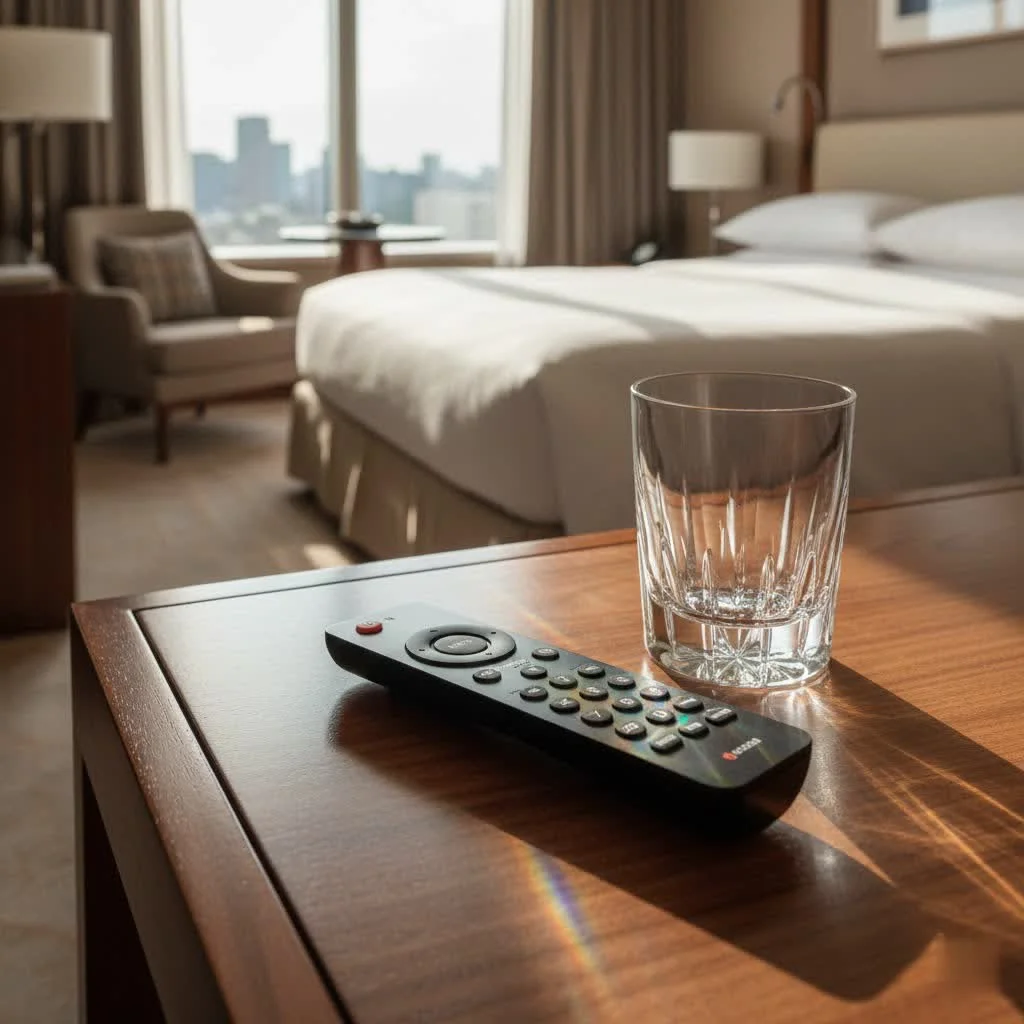
A GE universal remote is a productivity booster for your home entertainment system, allowing you to control your TV, soundbar, cable box, and streaming device from a single controller. GE has long been a trusted name in providing accessible, easy-to-use solutions for this purpose.
Understanding Your GE Universal TV Remote
At its core, a universal remote is a programmable device designed to consolidate the functions of multiple original remotes. Instead of searching for separate remotes for your TV, DVD player, and streaming stick, a single universal remote handles it all. This reduces clutter and minimizes frustration, making your entertainment experience smoother and more enjoyable.
GE universal remotes are specifically chosen for their user-friendliness and broad compatibility. They support a vast array of brands and device types, from older CRT televisions to the latest smart TVs and streaming players. Their straightforward programming methods, including direct code entry and automatic code search, make setup accessible even for non-tech-savvy users. They often come at an affordable price point, offering excellent value.
Types of GE Universal Remotes: Finding Your Perfect Match
GE offers a range of universal remotes to cater to various home entertainment system needs. The primary differentiator among models is typically the number of devices they can control:
- 2-Device Remotes: Ideal for basic setups, such as a TV and a soundbar or a TV and a cable box.
- 4-Device Remotes: A popular choice for most households, allowing control over a TV, cable box, DVD/Blu-ray player, and an auxiliary device like a sound system or streaming stick.
- 8-Device Remotes: For integrated home theaters, managing a wider array of components, from game consoles to smart home hubs.
When selecting a GE universal TV remote, consider features like backlighting, which is useful in dimly lit rooms, and the button layout. While many GE remotes prioritize simplicity, some newer models may offer dedicated streaming service buttons, though this is less common on their basic offerings. For instance, models like the GE 4-Device 48844 are praised for their compact design and comfortable grip, offering a reliable, low-cost solution without unnecessary frills.
How to Program Your GE Universal TV Remote: Step-by-Step Guides
Programming your GE universal TV remote is usually a straightforward process, with a couple of reliable methods availableBefore you begin, ensure your device (TV, DVD player, etc.) is powered on and your GE remote has fresh batteries.
Method 1: Direct Code Entry
|
Our Picks for the Best Universal Remote in 2026
As an Amazon Associate I earn from qualifying purchases.
|
||
| Num | Product | Action |
|---|---|---|
| 1 | Universal-TV-Remote-Control Compatible with Samsung/LG/Vizio/Hisense/Sony/Philips/Onn/Sharp/RCA/Element/Westinghouse/Sanyo/Emerson TV and More Brand Smart TVs |

|
| 2 | Remote, Universal XRT140R for Vizio TV |
|
| 3 | Universal-TV-Remote-Control for Samsung, LG, Hisense, TCL, Sony, Vizio, Onn, Toshiba, Philips and More DVD, Blu ray Player, Soundbar Devices |
|
| 4 | GE Rechargeable TV Remote Control, Universal Remote Control, Backlit Buttons, Samsung TV Remote Control Replacement for Smart TVs, Apple TV, Sony, Roku Replacement Remote, LG TV, 4-Device, 80984 |
|
| 5 | SofaBaton X1S Universal Remote with Hub and App, All in One Smart Universal Remote Control with Customize Activities, Control Up to 60 IR/Bluetooth/WiFi Devices |
|
| 6 | BroadLink RM4 pro IR and RF Universal Remote, All in One Hub Code Learning Wi-Fi Remote Control for TV Air Conditioner STB Audio, Curtain Motor, Works with Alexa, Google Home, IFTTT |
|
| 7 | Universal-TV-Remote-Control for Samsung/LG/Vizio/TCL/Hisense/Sony/Philips/Roku Smart TVs, for Insignia/Toshiba Smart TVs |
|
| 8 | 【Pack of 2】 New Universal Remote for All Samsung TV Remote, Replacement Compatible for All Samsung Smart TV, LED, LCD, HDTV, 3D, Series TV |
|
| 9 | TV Remote, XRT140R |
|
| 10 | (Pack of 3) Replacement Remote Only for Roku TV with Soft Silicone Protective Cover (Glow in The Dark), Universal Remote for TCL/Onn/Hisense/Sharp/Element/Philips Roku Smart TV (Elegant White) |
|
This method is often the most reliable, especially if you have your device’s brand-specific code handy. These codes can usually be found in your remote’s instruction manual, inside the battery compartment, or through online code lists.
Here’s how to do it:
- Turn on the device you wish to control (e.g., your TV).
- On your GE universal TV remote, press and hold the “Setup” button until the red indicator light turns on and stays solid. Then release the “Setup” button.
- Press the corresponding device button for what you’re programming (e.g., “TV,” “DVD,” “CBL,” or “AUX”). The red light will blink once and then remain on.
- Enter the 3- or 4-digit code for your device’s brand using the number pad. The red light should turn off after you enter the last digit.
- Test the remote by pressing the “Power” button. If the device turns off, you’re all set! If not, repeat the process with the next code listed for your brand.
Method 2: Auto Code Search
If you can’t find the code or prefer an automated approach, the auto code search feature is incredibly handy. This method scans through a vast library of codes until it finds one that works with your device.
Follow these steps:
- Turn on the device you want to control.
- Press and hold the “Setup” button on your GE universal TV remote until the red indicator light turns on and stays solid. Release “Setup.”
- Press the device button you want to program (e.g., “TV”). The red light will blink once and remain on.
- Point the remote at the device and repeatedly press the “Power” button (or sometimes “Channel Up”) slowly, every 2-3 seconds. The remote will transmit a new code with each press, and the red light will flash.
- Stop immediately when your device turns off. This indicates a successful code has been found.
- Manually turn your device back on.
- Now, press the “Volume Up” button on the remote. If the device’s volume responds (or if it turns off again), press the same device button you selected in step 3 (e.g., “TV”) to save the code.
- Test all functions like power, volume, and channel to ensure full compatibility. If some functions don’t work, repeat the auto code search to find a better code.
Troubleshooting Common GE Universal TV Remote Issues
Even with the best instructions, your GE universal TV remote might occasionally act finicky. Most issues are easily resolved with a few simple troubleshooting steps.
My remote isn’t responding at all!
- Check the Batteries: Weak or dead batteries are the most frequent culprits. Replace them with fresh ones.
- Ensure Line of Sight: Your GE universal TV remote uses infrared (IR) signals, which require a clear, unobstructed path to your device’s IR sensor. Make sure nothing is blocking the remote’s front or your device’s sensor.
- Confirm Correct Device Mode: GE remotes have dedicated device buttons (TV, DVD, CBL, AUX). If you’re trying to control your TV but the remote is in “CBL” mode, it won’t work. Press the correct device button (e.g., “TV”) until the indicator light confirms your selection.
Some buttons work, others don’t.
- Try a Different Code: It’s possible the current code provides partial functionality. Repeat the direct code entry or auto code search process to find an alternative code for your device. Many brands have multiple compatible codes.
- Power Cycle the Device: Sometimes the issue isn’t the remote but the device itself. Unplug the TV (or other device) from the wall outlet for a minute or two, then plug it back in and let it restart fully. This can clear software glitches that might prevent it from responding to IR commands.
I need to start over!
- How to Perform a Factory Reset: If you’re facing persistent issues or want to clear all programmed settings, a factory reset can return your GE universal TV remote to its default state. To do this, press and hold the “Setup” button until the red light stays on. Release “Setup,” then press the “Mute” button once, and then press the “0” key. The light should flash and turn off, indicating a successful reset.
- Reprogramming After Reset: after a factory reset, your remote will no longer control any devices, and you’ll need to reprogram it from scratch using one of the methods described above.
Expert Reviews: Top GE Universal TV Remote Models
As content lead for LTVBC, I’ve had my hands on countless remotes, and GE models consistently stand out for their blend of simplicity and value.
- GE 4-Device 48844: This model is a perennial favorite for good reason. Users frequently praise its ease of setup and intuitive button layout, making it a great choice for standard home setups. The inclusion of backlighting on this updated model is a huge plus for nighttime viewing. While it might lack advanced macro functions found in more premium universal remotes, for consolidating four common devices with minimal fuss, it’s a stellar performer. Its affordability makes it a fantastic entry point into the universal remote world.
- GE 8-Device Models (e.g., 30758, 41567): For those with more complex entertainment systems, GE’s 8-device remotes offer expanded control. Many users appreciate the extra device capacity and backlit buttons. However, some older 8-device models might lack direct “Source” input buttons, meaning you might still need to switch inputs on your TV directly or via its original remote if you frequently change video sources. Despite this, their comprehensive control over numerous devices makes them a powerful solution for an integrated home theater.
Overall, GE universal remotes are highly regarded for being quick to set up, straightforward to operate, and offering excellent value for money. They might not always have dedicated streaming buttons or customizable macros, but for core functionality and consolidating remotes, they deliver reliably.
Conclusion
Embracing a GE universal TV remote is about more than just convenience; it’s about reclaiming control over your home entertainment experience. From simplifying your setup to effortlessly switching between devices, these remotes are an invaluable tool for any modern household. By understanding the different types, mastering the programming methods, and knowing how to troubleshoot common hiccups, you can confidently wield your GE universal TV remote like a true pro.
So, go ahead, consolidate those remotes, streamline your living room, and enjoy the seamless control a GE universal TV remote brings. Your entertainment system—and your peace of mind—will thank you for it!
Get our weekly buyer guide
Practical specs, not advice. Unsubscribe anytime.
I was looking for something simple and affordable to control my smart TV and streaming device, and this GE remote fit the bill perfectly. It was super easy to program, and I appreciate not having to switch between remotes anymore. It’s a practical choice for anyone wanting to streamline their entertainment setup without spending a lot.
The GE universal remote is pretty good for the price point, and it definitely controls my TV and cable box without an issue. My only minor complaint is that the buttons feel a little bit cheap compared to my original remotes. It’s not a dealbreaker, but I do notice the difference in quality. Still, it gets the job done for consolidating controls.
I finally got tired of juggling three different remotes for my TV, soundbar, and old DVD player. This GE universal remote was a lifesaver! The setup was surprisingly easy, even for my older CRT TV, which I was worried about. It really does make my coffee table look a lot less cluttered, and everything just works seamlessly now.
Having a single controller for my TV, soundbar, and Roku is a game changer. I’ve tried other universal remotes before, but the broad compatibility of this GE model really stands out. It even worked with my somewhat obscure brand of soundbar. Definitely a productivity booster for my home entertainment system.