Tired of juggling a stack of remotes just to enjoy your favorite shows on your Amazon Firestick? You’re not alone. Many streaming enthusiasts dream of a single, sleek device that controls everything – their TV, sound system, and of course, their beloved Firestick. As a universal remote specialist with over a decade of experience, I can tell you that achieving this streamlined setup is not just a pipe dream; it’s a very real and achievable goal for your Firestick experience.
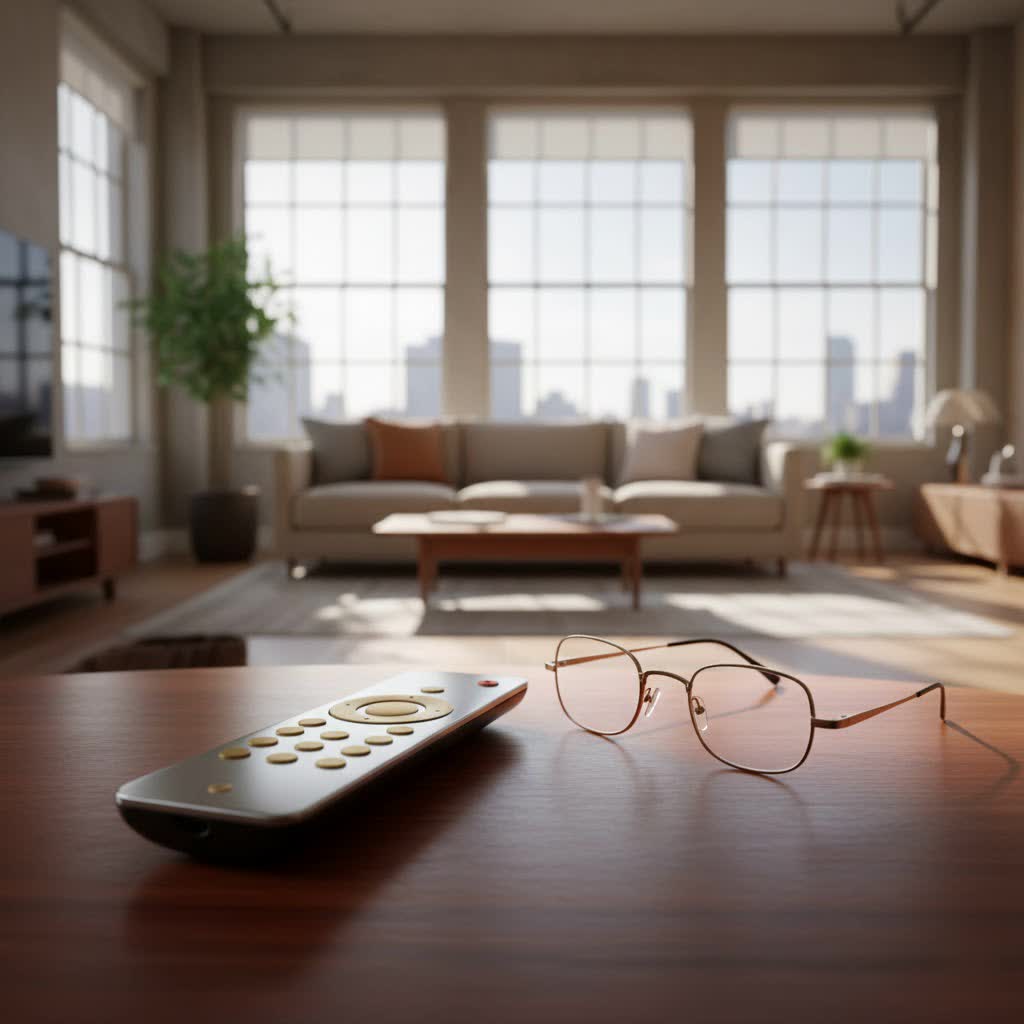
This guide will demystify the world of universal remotes for your Firestick, helping you understand the crucial differences in technology, explore the best options available, and walk you through the programming process. Let’s reclaim your coffee table and elevate your entertainment setup!
Why Ditch Multiple Remotes? The Universal Remote Advantage for Firestick
In today’s interconnected home entertainment landscape, a universal remote isn’t just a luxury; it’s a necessity for true convenience. Imagine settling down for a movie night: one press of a button turns on your TV, switches to the correct HDMI input, powers up your soundbar, and prepares your Firestick for streaming. This “activity-based” control is the hallmark of a great universal remote and eliminates the frustration of searching for the right clicker, ensuring you spend more time enjoying content and less time fumbling with gadgets.
Beyond convenience, a single remote also declutters your living space, reduces battery waste from multiple devices, and offers a more intuitive user experience, especially for households with varying tech comfort levels.
Firestick’s Remote Reality: Bluetooth vs. Infrared (IR)
Here’s the critical piece of information many users overlook: Amazon Firestick devices primarily communicate with their remotes using Bluetooth technology, not the traditional Infrared (IR) signals that most older or basic universal remotes rely on. This distinction is paramount when choosing a compatible universal remote.
“Understanding the primary communication method of your Firestick is the first step,” advises Elias Vance, LTVBC’s lead universal remote expert. “Bluetooth offers a more robust connection without needing a direct line of sight, but it also means that a simple IR remote won’t work out of the box.”
IR remotes send pulsed light signals that require a clear path to the device’s IR receiver. Bluetooth, on the other hand, creates a wireless radio connection, allowing you to control your Firestick even if it’s tucked behind your TV or in a cabinet. This difference explains why your old TV universal remote might not immediately control your Firestick.
Solutions for Using a Universal Remote with Your Firestick
Don’t despair! Even with the Bluetooth challenge, there are several effective strategies to integrate your Firestick into a universal remote setup.
The Bluetooth Universal Remote: Direct Control
|
Our Picks for the Best Universal Remote in 2026
As an Amazon Associate I earn from qualifying purchases.
|
||
| Num | Product | Action |
|---|---|---|
| 1 | Universal-TV-Remote-Control Compatible with Samsung/LG/Vizio/Hisense/Sony/Philips/Onn/Sharp/RCA/Element/Westinghouse/Sanyo/Emerson TV and More Brand Smart TVs |

|
| 2 | BroadLink RM4 pro IR and RF Universal Remote, All in One Hub Code Learning Wi-Fi Remote Control for TV Air Conditioner STB Audio, Curtain Motor, Works with Alexa, Google Home, IFTTT |
|
| 3 | GE Rechargeable TV Remote Control, Universal Remote Control, Backlit Buttons, Samsung TV Remote Control Replacement for Smart TVs, Apple TV, Sony, Roku Replacement Remote, LG TV, 4-Device, 80984 |
|
| 4 | 【Pack of 2】 New Universal Remote for All Samsung TV Remote, Replacement Compatible for All Samsung Smart TV, LED, LCD, HDTV, 3D, Series TV |
|
| 5 | Universal-TV-Remote-Control for Samsung/LG/Vizio/TCL/Hisense/Sony/Philips/Roku Smart TVs, for Insignia/Toshiba Smart TVs |
|
| 6 | Universal-TV-Remote-Control for Samsung, LG, Hisense, TCL, Sony, Vizio, Onn, Toshiba, Philips and More DVD, Blu ray Player, Soundbar Devices |
|
| 7 | TV Remote, XRT140R |
|
| 8 | Remote, Universal XRT140R for Vizio TV |
|
| 9 | SofaBaton X1S Universal Remote with Hub and App, All in One Smart Universal Remote Control with Customize Activities, Control Up to 60 IR/Bluetooth/WiFi Devices |
|
| 10 | (Pack of 3) Replacement Remote Only for Roku TV with Soft Silicone Protective Cover (Glow in The Dark), Universal Remote for TCL/Onn/Hisense/Sharp/Element/Philips Roku Smart TV (Elegant White) |
|
The most straightforward path to universal control for your Firestick is to choose a universal remote that supports Bluetooth connectivity. These remotes are designed to pair directly with your Firestick, just like its original remote.
Bluetooth universal remotes offer the best experience, providing full navigational control, voice commands (if the remote has a microphone), and the convenience of not needing line of sight. They seamlessly integrate with the Firestick’s native functions.
Top brands like SofaBaton are renowned for their Bluetooth-enabled universal remotes, offering extensive device compatibility and user-friendly programming. The Logitech Harmony series, particularly its hub-based models, also excelled in this area before being discontinued, and many users still find them highly effective. These remotes can typically control dozens of devices, including your Firestick, TV, soundbar, and more.
Leveraging HDMI CEC: Your TV Remote as a Gateway
A clever workaround for basic control is to utilize HDMI Consumer Electronics Control (CEC). This feature, present in most modern TVs, allows devices connected via HDMI to send control commands to each other. When enabled, your TV’s remote control can often navigate your Firestick’s interface, manage playback, and even power it on or off.
To enable HDMI CEC, you’ll need to dive into your TV’s settings. Be aware that each TV manufacturer has its own quirky name for CEC, such as “Anynet+” (Samsung), “SimpLink” (LG), “BRAVIA Sync” (Sony), “VIERA Link” (Panasonic), or “EasyLink” (Philips). Once activated and your Firestick is plugged into an HDMI port, try using your TV’s remote to control it.
While convenient, HDMI CEC typically offers limited functionality compared to a dedicated Firestick remote or a full-featured Bluetooth universal remote. You might not get access to voice commands or advanced app controls.
The IR Receiver Dongle: Bridging the Gap
If you already own a favorite IR-based universal remote and aren’t ready to invest in a new Bluetooth model, an IR receiver dongle can act as a bridge. Devices like the FLIRC or Inteset IReTV are small USB accessories that plug into your Firestick’s micro-USB port. These dongles convert IR signals from your universal remote into commands that your Firestick understands.
However, Firesticks often have only one micro-USB port, primarily for power. This means you’ll likely need a USB Y-cable to simultaneously power your Firestick and connect the IR receiver. Programming these dongles can be a bit more involved, often requiring a computer to configure the FLIRC or using specific device codes for your universal remote (e.g., programming your universal remote to “Microsoft Xbox 360” for the Inteset IReTV, as these devices share similar IR codes).
This method is ideal for those committed to their existing IR universal remote, but it adds an extra piece of hardware and a slightly more complex setup.
Choosing the Right Universal Remote for Your Firestick
With several options available, selecting the perfect universal remote involves considering your specific needs and existing home theater setup.
Key Features to Prioritize
When evaluating universal remotes for your Firestick, keep these features in mind:
- Connectivity (Bluetooth is King): Ensure the remote explicitly supports Bluetooth for seamless Firestick control. If you opt for an IR remote with a dongle, verify the dongle’s compatibility.
- Device Support: How many devices do you need to control (TV, soundbar, receiver, game console)? Some remotes handle just a few, while advanced models can manage dozens.
- Ease of Setup: Look for remotes with intuitive programming methods, whether it’s through a companion app, on-screen prompts, or a straightforward code entry system.
- Ergonomics and Usability: A remote should feel comfortable in your hand, with well-placed, responsive buttons. Backlit buttons are a huge plus for dark viewing environments.
- Voice Control: If you frequently use Alexa on your Firestick, look for a universal remote with a built-in microphone for voice commands.
- Rechargeable Batteries: This feature adds convenience and reduces waste.
- Activity-Based Control: The ability to program multi-step actions (e.g., “Watch Firestick” turns on TV, switches input, powers soundbar, and opens Firestick) is a game-changer.
Top Recommendations for Firestick Enthusiasts
Based on our extensive testing and community feedback, here are some top universal remote options that pair well with your Firestick:
- SofaBaton Series (U2, X1S, X2): SofaBaton remotes consistently rank high for their broad device compatibility (often supporting over 500,000 devices), robust Bluetooth connectivity, and user-friendly apps. The U2 is a fantastic budget-friendly option, while the X1S and X2 offer more advanced features and touchscreens.
- Logitech Harmony Elite (and Hub-based models): While Logitech has exited the universal remote market, their Harmony hub-based systems remain incredibly powerful. The Harmony Elite, for instance, offers extensive smart home integration, a full-color touchscreen, and seamless control over Firestick via its hub’s Bluetooth capabilities. Used models are still highly sought after.
- Amazon Fire TV Alexa Voice Remote Pro: For those who prefer a first-party solution, the Alexa Voice Remote Pro is an excellent upgrade. It controls your Firestick via Bluetooth and can also manage your TV’s power, volume, and mute functions via IR. Features like customizable buttons, backlighting, and a remote finder make it a compelling choice.
- Amazon Fire TV Cube: If you’re due for a Firestick upgrade, the Fire TV Cube acts as both a powerful streaming device and a universal remote. It has a built-in IR emitter to control your TV and sound system and offers hands-free Alexa voice control for both your streaming and connected devices.
Step-by-Step: Programming Your Universal Remote for Firestick
The programming process varies depending on the type of universal remote and method you choose. Here’s a general guide:
For Bluetooth Universal Remotes (App-based/Direct Pairing)
- Install the Companion App: Many advanced Bluetooth universal remotes, like those from SofaBaton or Logitech Harmony, use a smartphone app for setup. Download and install it.
- Power On Devices: Ensure your Firestick, TV, and any other devices you want to control are powered on.
- Initiate Pairing on Remote: Follow the remote’s or app’s instructions to put the universal remote into Bluetooth pairing mode.
- Pair with Firestick: On your Firestick, go to
Settings > Controllers & Bluetooth Devices > Amazon Fire TV Remotes > Add New Remote. Your universal remote should appear in the list. Select it to pair. - Add Other Devices: Use the universal remote’s app or on-screen interface to add your TV, soundbar, and other components, typically by entering brand names, model numbers, or using an automatic code search.
Using HDMI CEC (TV Settings)
- Connect Firestick: Plug your Firestick into an HDMI port on your TV.
- Access TV Settings: Go to your TV’s settings menu.
- Enable CEC: Locate the HDMI CEC setting (e.g., “Anynet+”, “SimpLink”) and ensure it’s turned on.
- Check Device List: Your TV’s CEC menu might show connected devices. Confirm your Firestick is recognized.
- Test Control: Use your TV’s remote to navigate and control basic functions on your Firestick.
With an IR Receiver Dongle (Specific Codes/Learning Function)
- Connect Dongle: Plug the IR receiver dongle (e.g., FLIRC, Inteset IReTV) into your Firestick’s micro-USB port. If needed, use a USB Y-cable to also provide power.
- Configure Dongle (if applicable): For devices like FLIRC, you might need to configure it on a computer first to assign IR codes to Firestick commands.
- Program Universal Remote:
- Code Entry: If the dongle or Firestick has a specific code for your universal remote (e.g., 02049 for Inteset Int-422, or “Microsoft Xbox 360” for Logitech Harmony with IReTV), enter that code according to your universal remote’s instructions.
- Learning Function: If your universal remote has a “learning” mode, it can “learn” commands directly from another remote. You would use the dongle’s remote (if it came with one) or the Firestick’s native remote to teach your universal remote the necessary IR signals.
Programming the Fire TV Remote for Your TV/Soundbar
If you’re using an enhanced Fire TV remote (like the Alexa Voice Remote Pro) and want it to control your TV’s power and volume:
- Go to Fire TV Settings: On your Firestick, navigate to
Settings > Equipment Control > Manage Equipment. - Add TV/Soundbar: Select
Add Equipmentand choose your TV or soundbar brand. - Follow On-Screen Prompts: The Fire TV will guide you through testing and programming the remote’s IR functions for your specific devices.
Troubleshooting Common Universal Remote Issues with Firestick
Even for seasoned pros, a hiccup can occur. Here are some common issues and how to resolve them:
- Remote Not Responding:
- Batteries: Always check for fresh batteries in your universal remote. It’s often the simplest solution!
- Line of Sight (IR remotes/dongles): Ensure no obstructions are blocking the IR signal.
- Pairing (Bluetooth remotes): Re-verify that your Bluetooth universal remote is correctly paired with your Firestick. Sometimes unpairing and re-pairing can resolve connectivity glitches.
- HDMI CEC Problems:
- Power Cycle: If CEC isn’t working, try unplugging your TV and Firestick from power for a minute, then plugging them back in. This often resets the CEC communication.
- Firmware: Ensure both your TV and Firestick have the latest firmware updates.
- Manufacturer Variations: Remember that CEC implementation can be finicky between brands. Some TVs simply don’t play nicely with certain devices via CEC.
- Limited Functionality:
- IR vs. Bluetooth: If you’re using an IR solution (CEC or dongle), you might not get advanced features like voice control. This is a limitation of the technology.
- Incorrect Codes/Learning: If specific buttons aren’t working, you might need to re-enter programming codes or re-do the learning function for those specific commands.
- USB Y-Cable Issues: If using an IR dongle, ensure your USB Y-cable provides sufficient power to both the Firestick and the dongle. A low-power USB port on your TV might not be enough.
“Patience is key with any universal remote setup,” says Elias Vance. “Don’t be afraid to try different methods or re-do programming steps. Most issues are minor and easily fixable with a bit of systematic troubleshooting.”
Maximizing Your Firestick Experience with a Universal Remote
Beyond just consolidating controls, a well-chosen universal remote can significantly enhance your entire Firestick experience. Imagine not just controlling your streaming, but also your smart lights, thermostat, or even automated blinds – all from a single device. Advanced universal remotes, especially hub-based systems, offer smart home integration, allowing you to create complex routines or “activities” that transform your living room into a fully immersive entertainment zone. This level of control makes your Firestick not just a media player, but a central part of your connected home.
Frequently Asked Questions
Can I use any universal remote with my Firestick?
No, not all universal remotes are compatible. Your Firestick primarily uses Bluetooth, so you’ll need a universal remote that supports Bluetooth connectivity or an IR receiver dongle (like FLIRC or Inteset IReTV) to enable control via a traditional IR universal remote.
Do all Firestick models support Bluetooth remotes?
Yes, all modern Amazon Firestick models come with Bluetooth capabilities for their native remotes and can pair with compatible Bluetooth universal remotes.
What is HDMI CEC and how does it help?
HDMI CEC (Consumer Electronics Control) is a feature in most modern TVs that allows connected devices to communicate. When enabled, your TV’s remote can often control basic Firestick functions like navigation, playback, and power, providing a limited form of universal control.
Are voice commands supported on universal remotes for Firestick?
Voice commands are supported if your universal remote has a built-in microphone and connects to the Firestick via Bluetooth, mimicking the functionality of the official Alexa Voice Remote. IR-based universal remotes or CEC control typically do not support voice commands.
How many devices can a universal remote control with a Firestick?
The number of devices a universal remote can control varies widely by model. Basic universal remotes might handle 3-4 devices, while advanced models like those from SofaBaton or the Logitech Harmony series can often control 15, 30, or even 60+ devices, including your Firestick, TV, soundbar, and other home theater components.
Conclusion
Embracing a universal remote for your Firestick is a game-changer for simplifying your home entertainment. While the Firestick’s reliance on Bluetooth presents a unique challenge, solutions ranging from dedicated Bluetooth universal remotes to clever IR dongles and HDMI CEC are readily available. By understanding these options and following our expert guidance, you can confidently choose and program a single remote that puts you in complete command of your Firestick and the rest of your home theater.
Say goodbye to remote clutter and hello to seamless streaming. Visit LTVBC.com for more in-depth reviews and guides, and share your universal remote setup success stories with us – we love to hear how you’ve optimized your entertainment hub!
