Tired of juggling a collection of remotes just to watch your favorite show or listen to music? Imagine a world where one sleek device effortlessly commands your entire home entertainment system. That’s precisely the promise of a universal remote, and the GE Designer Series 4-Device Universal Remote steps up to deliver on that convenience. As an expert in universal remote technology with years of experience, I’ve seen countless devices designed to simplify your digital life. This particular GE model is a popular choice for many, blending style with robust functionality to streamline your viewing and listening experience.
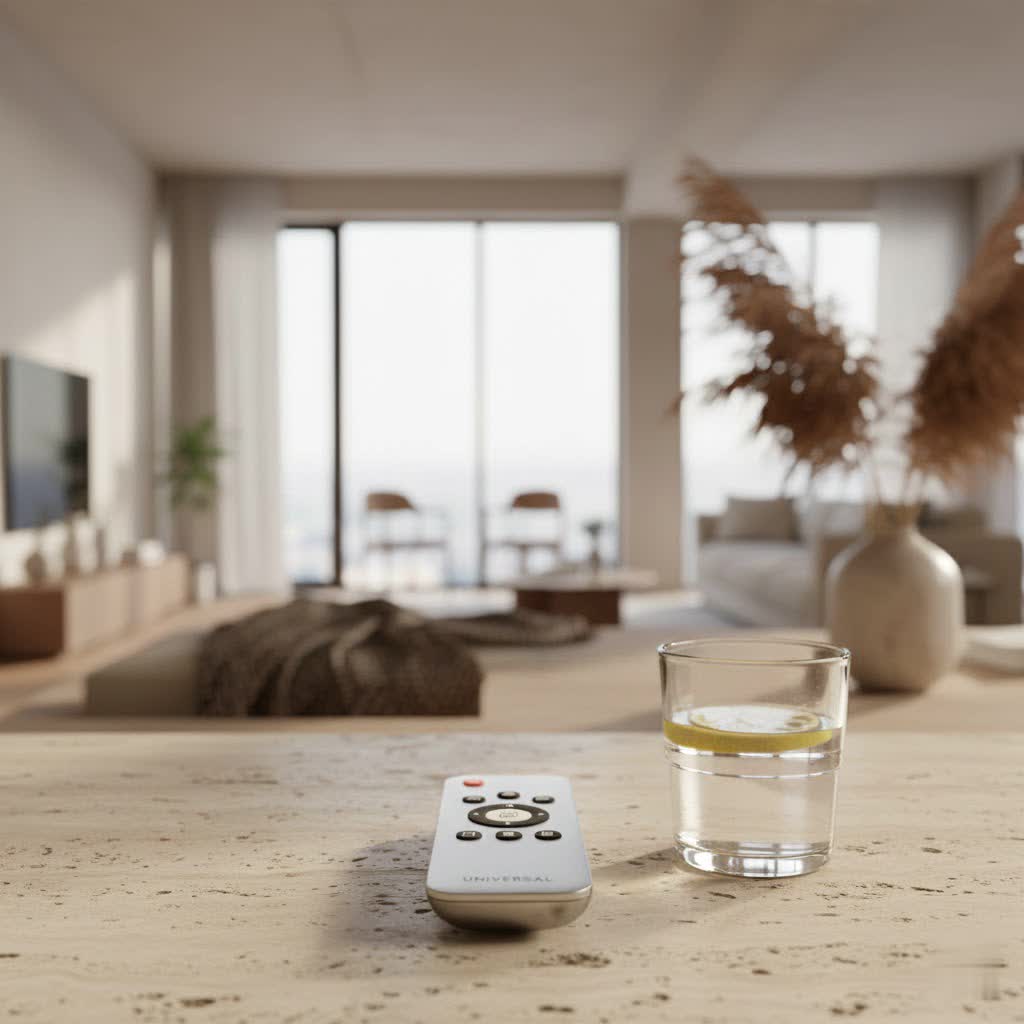
Why Choose the GE Designer Series 4-Device Universal Remote?
The GE Designer Series 4-Device Universal Remote is engineered for simplicity and elegance. Its primary function is to consolidate control over up to four distinct audio and video components, meaning your TV, Blu-ray player, soundbar, and streaming device can all be managed from a single, comfortable remote. Beyond just reducing clutter, this remote is designed to be intuitive and user-friendly.
One of its standout features is the master volume control. This clever addition allows you to adjust the audio output no matter which device you currently have selected, eliminating the frustrating need to switch back to your TV’s device mode just to turn the volume up or down. “For a truly seamless experience, master volume control is non-negotiable in a good universal remote,” notes Evelyn Reed, a seasoned expert in home entertainment systems. The remote also includes essential menu navigation buttons and a handy “Dot” button for quick access to sub-channels. With a sleek brushed finish available in various shades like silver, rose gold, or graphite, it’s crafted to complement any modern living space. Moreover, it often comes preprogrammed for popular brands like Samsung TVs and Roku streaming media boxes, making initial setup even quicker for many users.
Getting Started: What Devices Can It Control?
The GE Designer Series 4-Device Universal Remote boasts broad compatibility, allowing it to interface with a vast array of home entertainment equipment. You can typically use it to control:
- Televisions (TVs): Most major brands.
- Blu-ray and DVD Players: For your disc-based media.
- Cable and Satellite Boxes (CBL/SAT): Managing your live TV.
- Audio Equipment (AUD): Soundbars, AV receivers, and home theater systems.
- Streaming Media Players (STRM): Devices like Apple TV and many Roku models.
Important Compatibility Notes: IR vs. RF
|
Our Picks for the Best Universal Remote in 2026
As an Amazon Associate I earn from qualifying purchases.
|
||
| Num | Product | Action |
|---|---|---|
| 1 | Universal-TV-Remote-Control Compatible with Samsung/LG/Vizio/Hisense/Sony/Philips/Onn/Sharp/RCA/Element/Westinghouse/Sanyo/Emerson TV and More Brand Smart TVs |

|
| 2 | Remote, Universal XRT140R for Vizio TV |
|
| 3 | (Pack of 3) Replacement Remote Only for Roku TV with Soft Silicone Protective Cover (Glow in The Dark), Universal Remote for TCL/Onn/Hisense/Sharp/Element/Philips Roku Smart TV (Elegant White) |
|
| 4 | Universal-TV-Remote-Control for Samsung/LG/Vizio/TCL/Hisense/Sony/Philips/Roku Smart TVs, for Insignia/Toshiba Smart TVs |
|
| 5 | SofaBaton X1S Universal Remote with Hub and App, All in One Smart Universal Remote Control with Customize Activities, Control Up to 60 IR/Bluetooth/WiFi Devices |
|
| 6 | GE Rechargeable TV Remote Control, Universal Remote Control, Backlit Buttons, Samsung TV Remote Control Replacement for Smart TVs, Apple TV, Sony, Roku Replacement Remote, LG TV, 4-Device, 80984 |
|
| 7 | TV Remote, XRT140R |
|
| 8 | Universal-TV-Remote-Control for Samsung, LG, Hisense, TCL, Sony, Vizio, Onn, Toshiba, Philips and More DVD, Blu ray Player, Soundbar Devices |
|
| 9 | 【Pack of 2】 New Universal Remote for All Samsung TV Remote, Replacement Compatible for All Samsung Smart TV, LED, LCD, HDTV, 3D, Series TV |
|
| 10 | BroadLink RM4 pro IR and RF Universal Remote, All in One Hub Code Learning Wi-Fi Remote Control for TV Air Conditioner STB Audio, Curtain Motor, Works with Alexa, Google Home, IFTTT |
|
It’s crucial to understand that the GE Designer Series 4-Device Universal Remote operates using Infrared (IR) signals. This means it needs a clear line of sight to the device it’s controlling, much like your original remote.
Crucially, this remote is NOT compatible with devices that rely solely on Radio Frequency (RF) signals. This includes popular streaming dongles such as Roku Streaming Sticks and Amazon Fire TV/Sticks. If your streaming device connects directly to an HDMI port and doesn’t have a separate IR receiver, this GE remote likely won’t control it. Always check your streaming device’s specifications for IR compatibility before attempting to program it.
Programming Your GE Designer Series Universal Remote: A Step-by-Step Guide
Programming your GE Designer Series 4-Device Universal Remote can be done in a couple of ways: by directly entering a specific code for your device or by using an automatic search function.
Direct Code Entry: When You Have the Codes Handy
This method is often the quickest if you have access to your device’s specific 4-digit code. You can typically find these codes in the remote’s instruction manual, on the manufacturer’s website (such as byjasco.com/remotecodes), or through online universal remote code databases.
- Turn on the device you wish to control (e.g., your TV).
- Press and hold the
SETUPbutton on the GE remote until the red indicator light turns solid. Then, release theSETUPbutton. - Press and release the desired device button (e.g.,
TV,DVD,CBL,AUX, orSTRM) that corresponds to the device you’re programming. The indicator light will flash once and then remain solid. - Enter the 4-digit code for your device using the number buttons on the remote. The indicator light should turn off after the fourth digit is entered.
- Test the remote’s functions by pointing it at your device and trying buttons like
POWER,VOLUME, orCHANNEL. If the device responds correctly, you’re all set! If not, repeat the process using the next code listed for your device brand.
Automatic Code Search: When Codes Are Elusive
If you can’t find a code or prefer a hands-off approach, the automatic code search function is your best friend. This method cycles through the remote’s extensive code library until it finds one that works for your device.
- Manually turn on the device you wish to control.
- Press and hold the
SETUPbutton on the GE remote until the red indicator light turns solid. Release theSETUPbutton. - Press and release the desired device button (e.g.,
TV,DVD,CBL,AUX, orSTRM). The indicator light will flash once and then remain solid. - Point the remote at your device and repeatedly press the
POWERbutton (approximately every two seconds). The remote will cycle through codes. - Continue pressing
POWERuntil your device turns off. This indicates that the remote has found a compatible code. - Immediately press the
ENTERbutton to save the code. The indicator light will turn off. - Test the remote’s functions to ensure everything works as expected. If some functions are missing or don’t work, you might need to repeat the automatic search to find a more comprehensive code. Patience is key here, as it might take several attempts to find the perfect match.
Maximizing Your Remote’s Potential: Advanced Tips and Features
Once your GE Designer Series 4-Device Universal Remote is programmed, you can unlock its full potential.
Master Volume Control
To set up master volume control, you’ll typically need to refer to the specific instructions in your remote’s manual or online support resources. This feature allows you to dedicate the volume control to a single device, such as your TV or audio receiver, even when the remote is in a different device mode. This is particularly useful if your sound output comes from an external speaker system rather than directly from your TV.
Navigation and Sub-Channels
The remote’s menu navigation buttons (directional pad and OK/ENTER) allow you to effortlessly browse on-screen menus for DVRs, smart TVs, or streaming interfaces. The “Dot” button offers direct access to sub-channels, like hopping from 4.1 to 4.2, enhancing your channel surfing experience.
Backlit Buttons for Low-Light Environments
Some models within the GE Designer Series feature backlit buttons, which illuminate with soft blue LEDs. This is a fantastic advantage for movie nights or dimly lit rooms, making it easy to find the right button without fumbling around or turning on bright lights.
Troubleshooting Common Issues with Your GE Designer Series Remote
Even the most reliable universal remotes can encounter hiccups. Here are some common issues and how to resolve them:
- Remote not operating your device: First, ensure a clear line of sight between the remote and your device’s infrared sensor. Double-check that you’ve selected the correct device button (TV, DVD, etc.). Often, the simplest solution is to replace old batteries with fresh ones. If the problem persists, try reprogramming the remote using a different code from your device brand’s list or by performing an automatic code search.
- Some functions do not work after programming: If certain buttons or advanced features aren’t responding, the current code might only be partially compatible. In this case, repeat the programming process using the automatic code search or another code from the list to find a better match. Some very specific or advanced functions may not be supported by any universal remote code.
- Indicator light does not turn on: Verify that your batteries are inserted correctly with the correct polarity (+/-). If they are, replace them with a fresh set.
- Incompatibility with Roku Streaming Sticks or Amazon Fire TV Sticks: As mentioned, these GE remotes operate via infrared (IR) signals. Roku Streaming Sticks and Amazon Fire TV/Sticks primarily use radio frequency (RF) signals and are generally not compatible with IR universal remotes.
How to Perform a Factory Reset
If you’re experiencing persistent issues or want to clear all programmed settings, a factory reset can give your remote a fresh start.
- Press and hold the
SETUPbutton until the red indicator light turns solid and stays on. - Release the
SETUPbutton, then press theMUTEbutton once. - Press the
0key on the number pad. The indicator light should blink a few times, confirming the reset.
Keep in mind that after a factory reset, all previously programmed devices will be erased, and you’ll need to reprogram each device from scratch.
Keeping Your Universal Remote in Top Shape: Maintenance Tips
To ensure your GE Designer Series 4-Device Universal Remote serves you reliably for years to come, a little routine maintenance goes a long way.
- Cleaning: Gently wipe the remote with a soft, dry cloth to remove dust and smudges. Avoid using abrasive cleaners or solvents, as these can damage the surface or internal components.
- Battery Replacement: When you notice the remote’s range decreasing or the indicator light dimming, it’s time for new batteries. Always replace both batteries simultaneously. Depending on your specific model, the remote typically requires two AAA or AA alkaline batteries.
- Storage: Store your remote in a cool, dry place, away from direct sunlight and extreme temperatures, to protect its electronics.
With its blend of sleek design, multi-device control, and user-friendly programming, the GE Designer Series 4-Device Universal Remote is an excellent solution for decluttering your coffee table and simplifying your home entertainment. By understanding its features, mastering the programming methods, and knowing how to troubleshoot common issues, you can take full control of your devices with ease.
Frequently Asked Questions (FAQ)
Q: What batteries does the GE Designer Series 4-Device Universal Remote use?
A: Most GE Designer Series 4-Device Universal Remotes require two AAA batteries, though some models may use two AA batteries. Always check the battery compartment of your specific remote for confirmation.
Q: Can I control my Roku Streaming Stick with this remote?
A: No, the GE Designer Series 4-Device Universal Remote operates using infrared (IR) signals. Roku Streaming Sticks and Amazon Fire TV Sticks primarily use radio frequency (RF) signals and are generally not compatible with IR universal remotes.
Q: How do I find codes for my devices?
A: Device codes are typically found in the instruction manual included with your GE universal remote, or you can often find them online on the manufacturer’s support website, such as byjasco.com/remotecodes.
Q: What if some buttons don’t work after programming?
A: If only some functions work, the code you used might be only partially compatible. Try reprogramming the device using the automatic code search method or another code from the list for your device brand to find a better, more comprehensive match.
Q: How do I reset my GE Universal Remote?
A: To factory reset your GE universal remote, hold down the SETUP button until the red light stays solid, then release SETUP, press MUTE once, and finally press 0. This will clear all programmed codes.
